MailSandbox Logo
Docs
Sign In
Inboxes
Receive and test emails in isolated inboxes
Overview

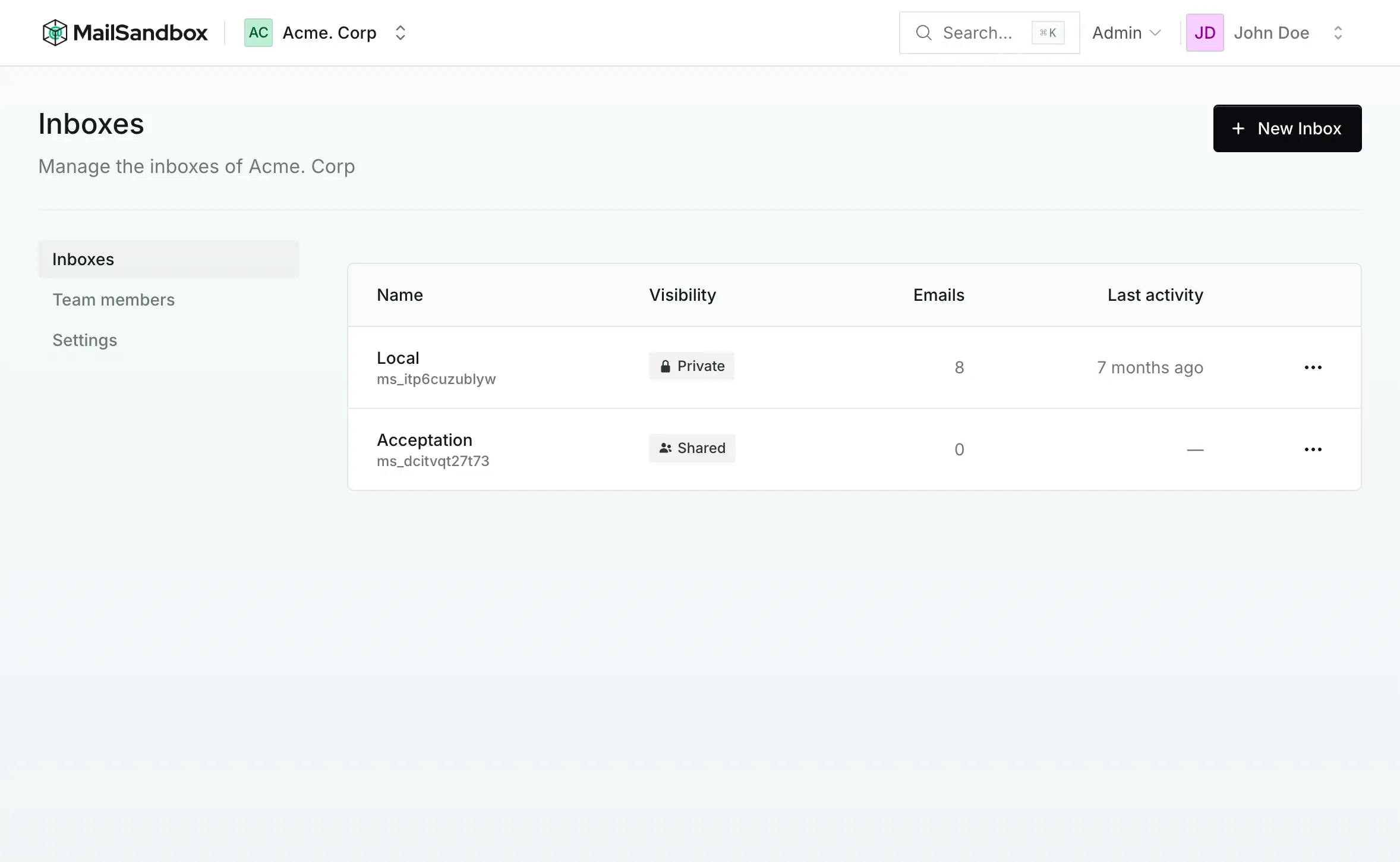
Inboxes are dedicated email receivers within your projects. Each inbox provides isolated credentials for testing emails from different environments, applications, or features. You can create multiple inboxes per project to organize your email testing workflow.

Every inbox automatically generates unique credentials that can be used to send emails via API or SMTP, making integration with your application straightforward.

Creating Inboxes

To create a new inbox in your project:

  1. Navigate to your project
  2. Click on "Inboxes" in the sidebar or header
  3. Click the "Create Inbox" button
  4. Enter a descriptive name for your inbox (e.g., "Staging Environment", "Production Notifications")
  5. Optionally, select the technology/framework you'll be integrating with
  6. Click "Create" to generate your inbox

Upon creation, Mailsandbox automatically generates secure credentials for your inbox:

  • API Key - Starts with "ms_" followed by 40 random characters
  • SMTP Username - Starts with "ms_" followed by 12 random lowercase characters
  • SMTP Password - 14 random lowercase characters
Security Note
All credentials are unique and cannot be changed after creation. Keep them secure and treat them like passwords. If compromised, create a new inbox and update your application configuration.
Integration Methods

Mailsandbox supports two primary methods for sending emails to your inboxes: API integration and SMTP integration. Choose the method that best fits your application architecture.

API Integration

The API integration allows you to send emails to your inbox using HTTP requests. This method is ideal for modern applications and provides simple, RESTful communication.

To integrate using the API:

  1. Copy your API key from the inbox settings
  2. Include the API key in your application's email configuration
  3. Send POST requests to the Mailsandbox API endpoint with your email data
  4. View code examples for your specific technology in the inbox dashboard
Code Examples
When viewing an inbox, click on the integration tab to see framework-specific code examples for Laravel, Node.js, Python, and more.

SMTP Integration

SMTP integration provides traditional email server connectivity. This method works with any application that supports SMTP, making it universally compatible.

Configure your application with these SMTP settings:

  • Host - smtp.mailsandbox.test (or your Mailsandbox domain)
  • Port - 587 (STARTTLS) or 465 (SSL)
  • Username - Your inbox SMTP username
  • Password - Your inbox SMTP password
  • Encryption - TLS or SSL
Compatibility
SMTP integration works with all email libraries and frameworks including PHPMailer, Nodemailer, SendGrid, Postmark, and built-in language mail functions.
Viewing Emails

Once your inbox is configured and emails are being sent, you can view them in real-time through the Mailsandbox interface.

Access your inbox by:

  1. Selecting your project from the project selector
  2. Clicking on "Inboxes" in the navigation
  3. Selecting the specific inbox you want to view

Email Features

The inbox view provides comprehensive email inspection capabilities:

  • HTML Preview - View rendered HTML emails in an isolated iframe
  • Plain Text View - Read plain text versions of emails
  • Raw Source - Inspect the complete email source code
  • Headers - View all email headers including authentication results
  • Attachments - Download and preview email attachments
  • Metadata - See sender, recipient, subject, and timestamp information

Sharing Emails

You can share individual emails with team members or stakeholders using secure sharing links:

  1. Open the email you want to share
  2. Click the "Share" button
  3. Generate a unique sharing URL
  4. Set an optional expiration time for the link
  5. Copy and send the URL to recipients

Shared emails can be viewed without authentication, making it easy to collaborate on email testing and debugging.

Managing Inboxes

Inboxes can be managed from the inbox settings page. Available management options include:

  • Rename - Update the inbox name to reflect its purpose
  • Archive - Archive inboxes that are no longer in active use while preserving all emails
  • Delete - Permanently remove an inbox and all its emails (cannot be undone)
  • View Credentials - Access API keys and SMTP credentials at any time
Important
Deleting an inbox permanently removes all emails and cannot be reversed. Consider archiving instead if you may need to reference emails in the future.

The inbox overview also displays helpful statistics:

  • Email Count - Total number of emails received
  • Last Activity - Timestamp of the most recent email
  • Storage Used - Disk space consumed by emails and attachments
Best Practices
  • Use separate inboxes for different environments (development, staging, production)
  • Name inboxes descriptively to easily identify their purpose
  • Regularly archive old inboxes to keep your workspace organized
  • Keep credentials secure and never commit them to version control
  • Use environment variables to manage API keys and SMTP credentials