

Projects
Overview
Section titled “Overview”Projects are the foundation of organizing your email testing workflow in MailSandbox. Each project acts as a container for your inboxes, team members, and related settings. Projects belong to an organisation and can be accessed by team members with the appropriate permissions.
Agencies typically create one project per client, so every client’s inboxes, testers and captured email stay cleanly separated.
Creating Projects
Section titled “Creating Projects”To create a new project:
- Click on the project selector in the header
- Select “Create new project”
- Enter a name for your project
- Optionally, upload a logo and choose an avatar color
- Click “Create” to finish
Project Settings
Section titled “Project Settings”Organisation administrators can manage project settings by navigating to the project and clicking “Settings” in the sidebar. From here you can:
- Update the project name
- Change the project logo
- Modify the avatar color
- Archive or delete the project
Features
Section titled “Features”Inboxes
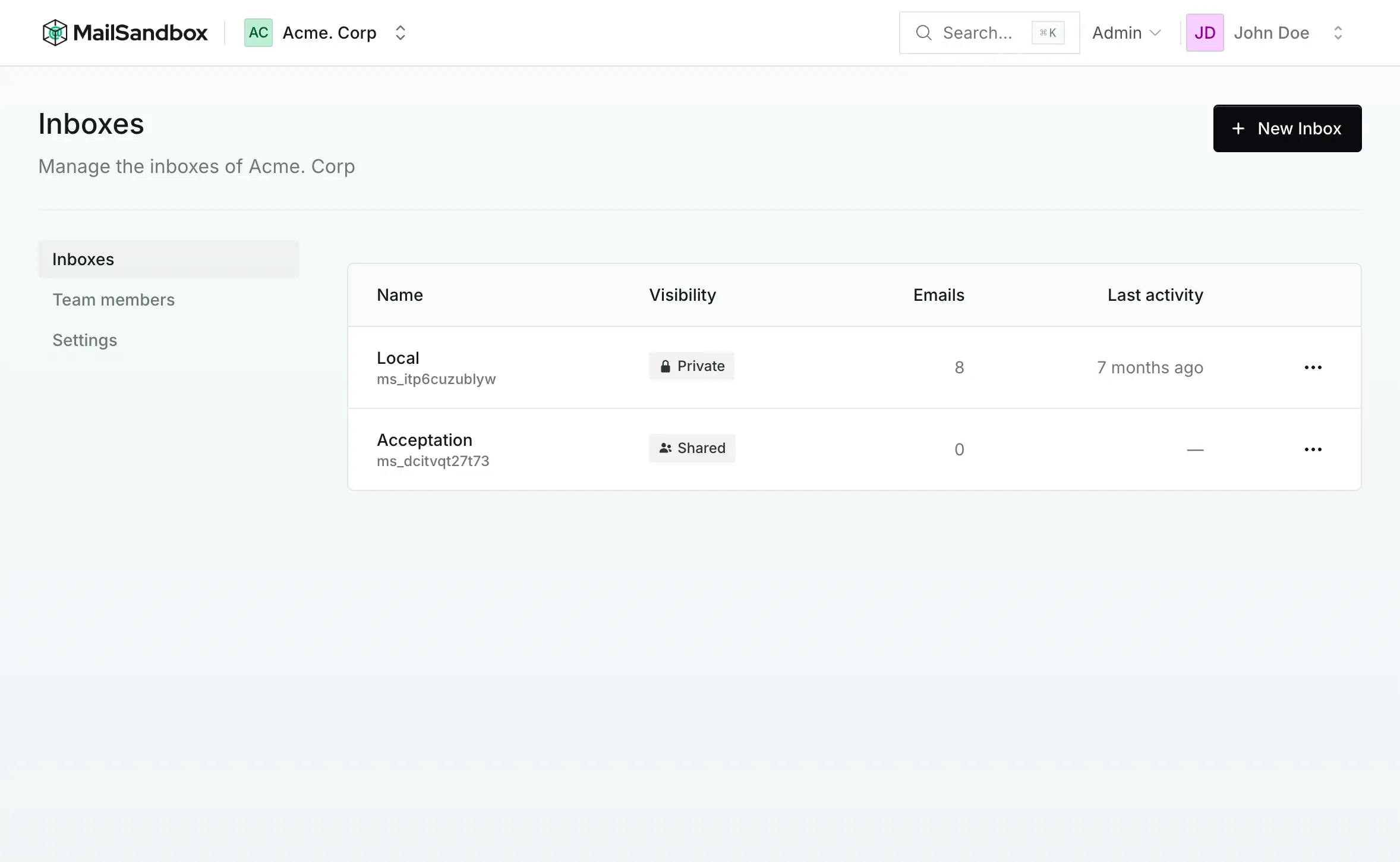
Section titled “Inboxes”Each project can contain multiple inboxes. Inboxes are where your test emails are received. When you create an inbox, it automatically generates credentials for sending email over SMTP or the API.
Learn more on the Inboxes page, or jump straight to SMTP and API integration.
Team Members
Section titled “Team Members”Projects support collaboration through team member management. You can:
- Add team members who should have access to the project
- Add test users who can send emails to project inboxes
- Control who can view and manage project resources
Access the team management page through the “Team members” link in the project sidebar.
Archiving
Section titled “Archiving”Projects can be archived when they are no longer actively used. Archiving a project:
- Hides the project from the default project list
- Preserves all data including inboxes and emails
- Can be reversed by restoring the project
Switching Projects
Section titled “Switching Projects”You can switch between projects using the project selector in the header. The selector displays the currently active project and shows all projects you have access to within your organisation.
Your selected project is remembered, so when you return to MailSandbox, you’ll automatically be viewing your last selected project.